SharePoint
Transform your organisation's SharePoint from a static document repository into a dynamic, AI-powered knowledge hub. By integrating SharePoint with myReach, you break down departmental silos and allow employees to query complex corporate data using natural language.
Whether it's HR policies, technical specifications or historical project data, myReach's AI "learns" your SharePoint libraries to provide instant, cited answers to anyone in the company. Save and sync your folders effortlessly.
Key Benefits
myReach doesn't just organise your information, it understands it.
Whether it's a document, website, video, audio... myReach's AI can extract information to answer questions from anyone in the company.
With your company's SharePoint connected to myReach's AI, here's what you can achieve:
- Instant Document Retrieval: Stop wasting hours searching through sub-sites. Employees can retrieve key documents instantly via myReach's AI Search, ensuring the right information is always at their fingertips.
- Seamless Onboarding: Use a SharePoint-integrated Genie to answer new hires' questions about company procedures, benefits and HR policies without manual intervention.
- Unified Project Insights: Combine data from multiple SharePoint Sites into a single Workspace. Query past deals, project statistics and collaborative outcomes to make informed, data-driven decisions.
- Simplified Compliance & Audits: Use the AI-powered search and citations to quickly verify adherence to regulations during internal audits or compliance checks.
- Knowledge Continuity: When employees move on, their institutional knowledge remains accessible through the documents they left in SharePoint, now fully searchable by the AI.
- Market Research Analysis: Query market research reports to gain insights on trends and data analyses for strategic planning.
- Client Support Through AI: Create a Genie that uses SharePoint documents to support client inquiries, compiling relevant information about products and services. Connect it to Shopify for additional information on account histories.
Steps to Integrate
- Go to Imports & Integrations on the left sidebar, and scroll down to the SharePoint integration.
- Click the "+Add" button.
- Read the instructions and click on "+Connect SharePoint".
- Login to the account you wish to integrate with your Microsoft 365 credentials.
- You will see a list of the SharePoint Sites and Sub-Sites you have access to.
- If a Site has already been imported by you or anyone else in your team (in a collaborative workspace), clicking on that Site will present you with two options:
- View Existing Integrations: See a list of all existing integrations already set up for that Site.
- Create New: Set up a new integration for that Site.
- Choose the Site you want to connect and select the folders and files to integrate.
- You will then be taken to the SharePoint Imported Properties screen, where you can configure how your SharePoint metadata fields map into myReach. Click Finish Import once done.
myReach will begin fetching and processing the content, automatically creating Tags for your folder structures.
SharePoint Imported Properties
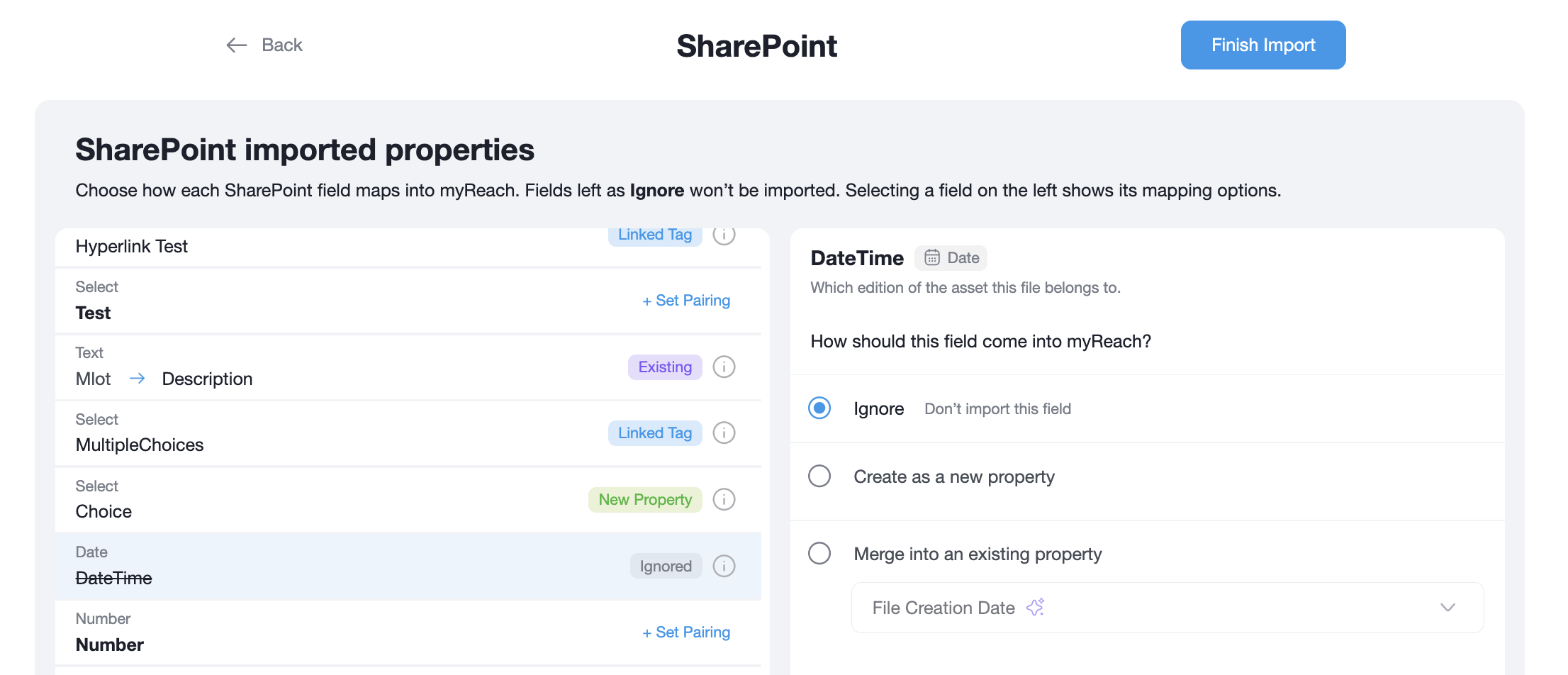
The SharePoint Imported Properties screen gives you full control over how your SharePoint metadata fields are brought into myReach. You can choose exactly how each field maps — or whether it should be imported at all.
Automatic Matching
myReach will automatically attempt to match each SharePoint field to an existing property in your workspace, based on your SharePoint schema. Fields that have been successfully auto-matched will display an Existing badge and show the mapping arrow (e.g. Entity → Entity).
Fields that could not be auto-matched will show a + Set Pairing prompt, indicating they require manual configuration.
Clicking on any field on the left will reveal its mapping options on the right-hand side, where you can review or change the mapping.
Field Status Badges
Any field that has not yet been reviewed will appear with its name in bold, similar to an unread email. Once you click and review a field, it will no longer appear bold.
Each field in the list displays a status badge indicating its current mapping state:
- Ignored — The field has not been mapped and will not be imported.
- New Property — The field will be imported as a brand-new Property in myReach.
- Existing — The field has been mapped to an already existing Property in myReach.
- Linked Tag — The field's value will be imported as a Tag linked to the files via a relationship type.
- + Set Pairing — The field has not yet been configured and requires manual mapping.
Tooltips
Hovering over certain elements will display a tooltip with additional context:
- Info icon (ⓘ) next to a field's status badge — Shows a description of the current mapping for that field.
- Merge into an Existing Property dropdown — Hovering over a property option in the dropdown shows a tooltip describing that property.
- Create as Linked Tag — relationship type dropdown — Hovering over a relationship type option shows its description.
Mapping Options
For each SharePoint field, you can choose one of the following options:
- Ignore — The field and its values will not be brought into myReach. Any field not reviewed or configured before import will be set to Ignore by default.
- Create as a New Property — The field will be imported and created as a brand-new Property in myReach, using the SharePoint field name and its values. Useful for metadata that doesn't yet exist in your myReach workspace.
- Merge into an Existing Property — The field's values will be mapped into an already existing Property in your myReach workspace. Use the dropdown to select which existing property to merge into. Ideal for keeping data consistent and avoiding duplicates.
- (⚠️ NOTE: For Select and Multiselect fields, the merge dropdown will show both existing Select and Multiselect properties as valid targets.)
- (⚠️ NOTE: If the selected property has no description, a warning will appear: "This property has no description — Ensure the selected property type includes a description after import to support accurate learning." You can still proceed with the mapping, but it is recommended to add a description to the property after import.)
- Create as Linked Tag (available for Select and Multiselect fields only) — The field's value will be turned into a Tag in myReach and linked to the imported files using a relationship type of your choice. When selected, a dropdown appears where you can select an existing relationship type or click + Create new relationship type to define a new one.
Finishing the Import
Once you have reviewed and configured your desired field mappings, click Finish Import to complete the integration.
If you proceed without reviewing all fields, a warning dialog will appear:
⚠️ Continue with properties unreviewed?
myReach matched these fields to a type and property automatically, based on your SharePoint schema. If that mapping looks right, you can import as is. Items not reviewed are set to "IGNORE" by default.
From here you can choose to:
- Review them first — go back and configure the remaining fields
- Import anyway — proceed with the import, leaving unreviewed fields set to Ignore
Editing Property Mappings After Import
You can revisit and adjust your property mappings at any time by navigating to the integration's detail page and clicking Property Mapping. All fields will reflect their current status: Matched for fields mapped to a property (whether new or existing), Linked Tag for fields mapped as a linked tag, and Ignored for fields that were not imported.
Re-authentication
If your SharePoint password is updated or your account credentials change, myReach will lose access to your SharePoint and synchronisation will no longer be available. You can identify this by the integration card turning yellow with a warning icon (⚠️) in your Imports & Integrations page.
To restore the connection:
- Click on the affected SharePoint integration.
- You will see a "Synchronisation not available" warning, indicating there is an issue with the sync of your SharePoint account with myReach.
- Click the "Update Sync" button.
- You will be prompted to log in again with your Microsoft 365 credentials to re-establish the connection.
Once re-authenticated, synchronisation will resume and your integration will return to normal.
(⚠️ NOTE: Until re-authentication is completed, any changes made in SharePoint will not be reflected in myReach.)
How it Works: Behind the Scenes
The SharePoint integration mirrors your Microsoft 365 environment while adding myReach's unique graph-based intelligence.
Folder & Site Mapping
- Sites as Website Nodes: SharePoint Sites are imported and created as Website nodes in myReach, serving as the parent nodes for all documents within that site.
- Folder Hierarchy: Your existing folder structure is maintained through a series of nested Tag relationships, allowing you to filter by "Department" or "Project" just as you would in SharePoint.
File Synchronisation
(⚠️ NOTE: Make sure the auto-sync is switched ON, for changes in your SharePoint to be reflected in myReach)
- Real-Time Updates: When a document is modified in SharePoint, myReach detects the change and updates the file's content and version property. The AI then automatically re-learns the updated text to ensure total accuracy.
- Metadata Preservation: Microsoft 365 metadata—such as "Last Modified By," "Created Date," and "File Owner"—is automatically mapped to myReach Properties.
- Versioning: If a file is renamed or moved between folders in SharePoint, myReach updates the metadata and creates new relationships while preserving the historical link to its original location.
- Token Expiry: When auto-sync is turned off, a warning message will appear at the top of your integration:
"After 90 days the token of this integration will expire. Make sure you make an integration or sync before then to regenerate it."
To avoid losing access, ensure you either turn auto-sync back on or manually trigger a sync before the 90-day period elapses.